Autodesk Build Mobile
Foreperson Quick Start Guide
Navigate and manage your construction projects from the field
1. Signing In
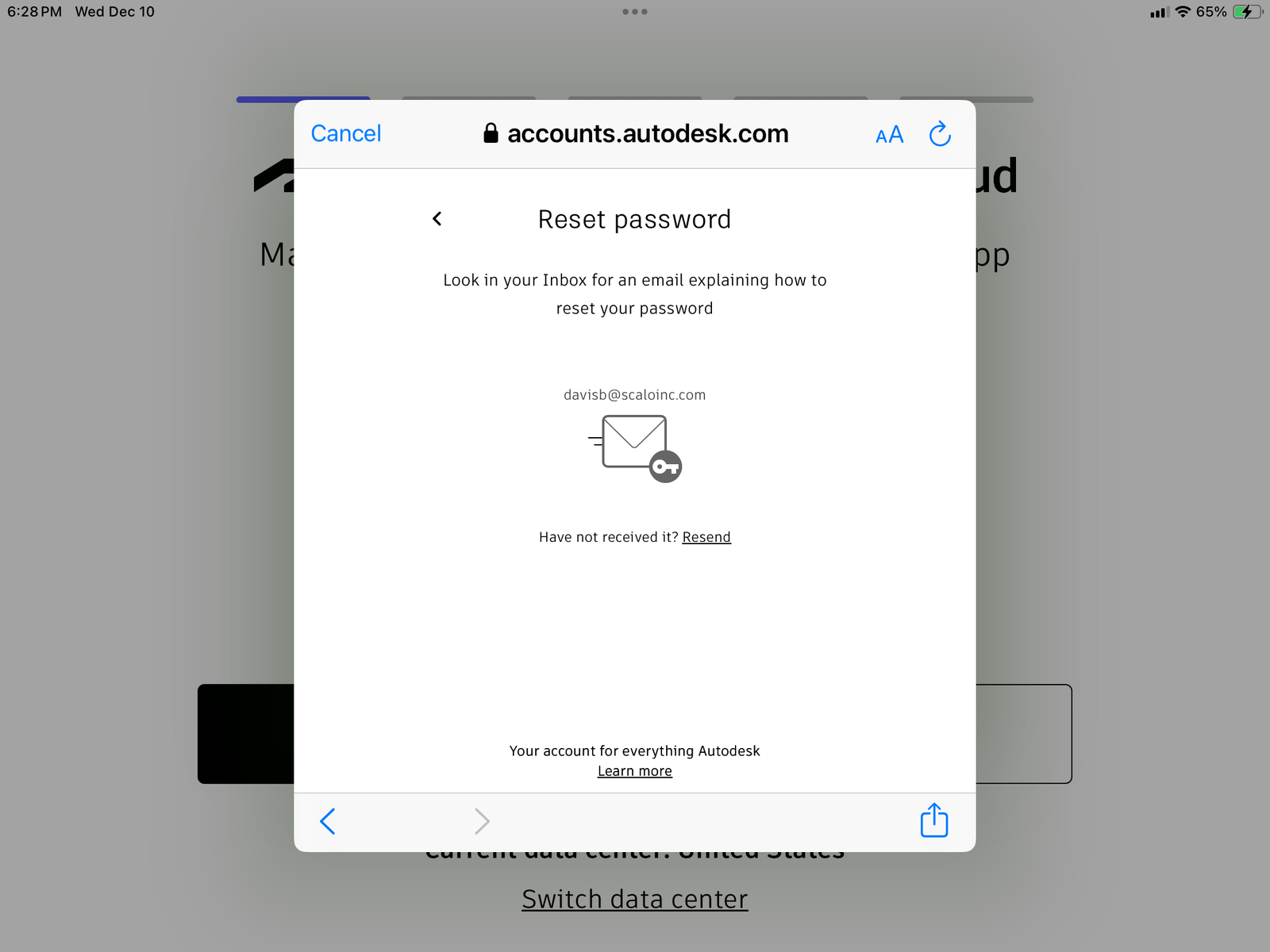
Step 1: Tap "Log in"
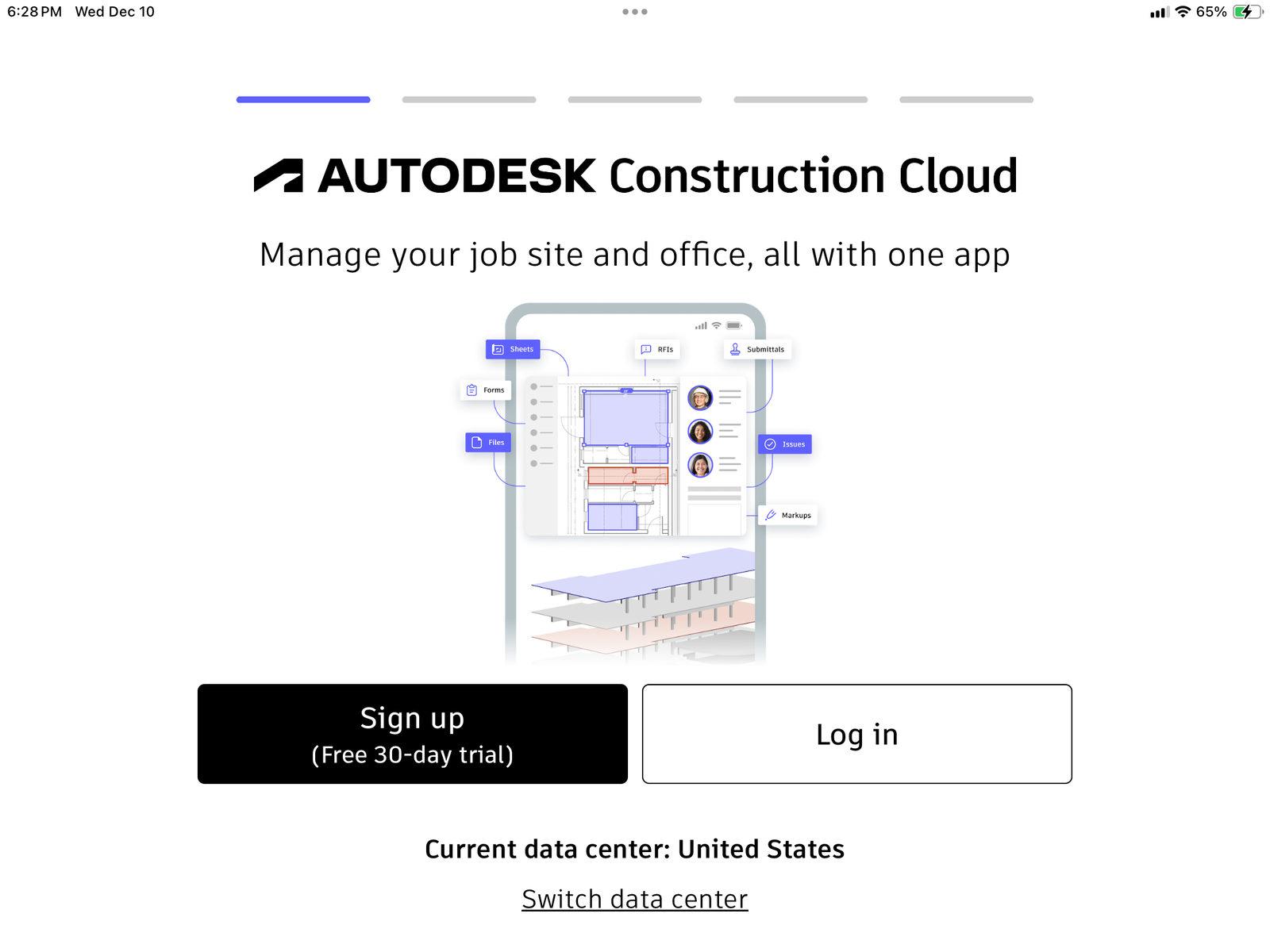
1. Signing In
Step 2: Enter your company email
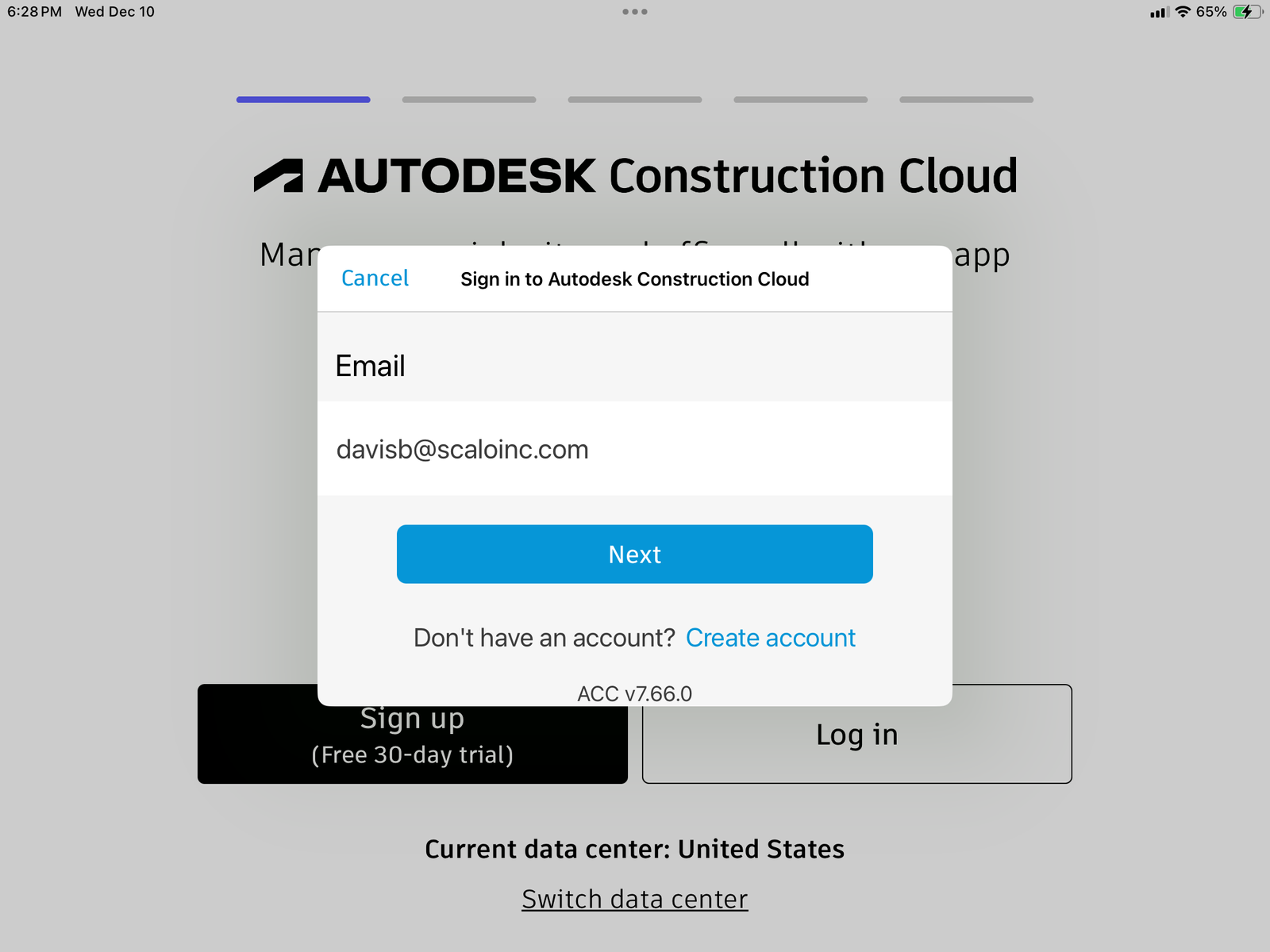
1. Signing In
Step 3: Enter your password
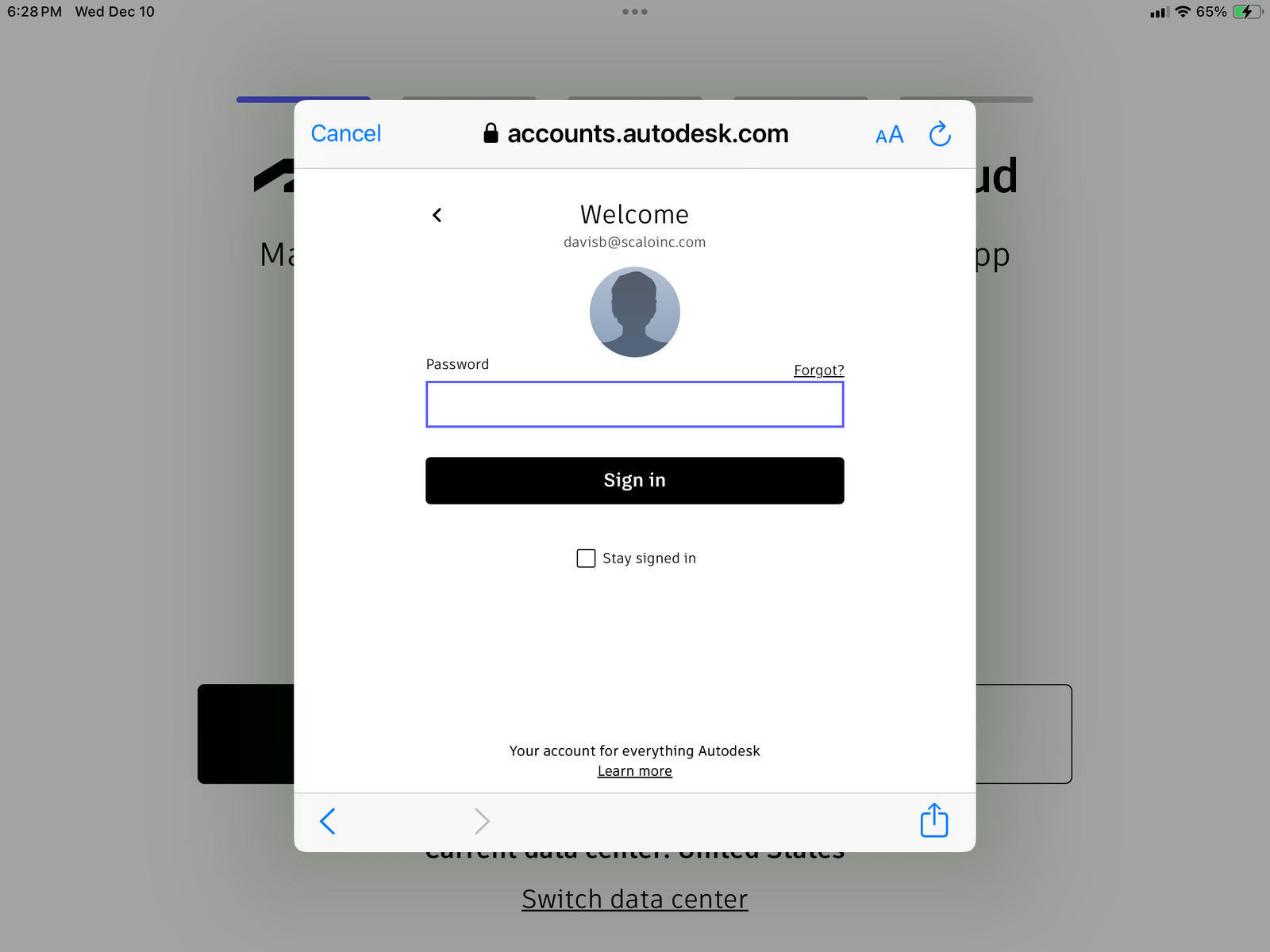
1. Signing In
Forgot Password? Tap "Forgot?" to reset
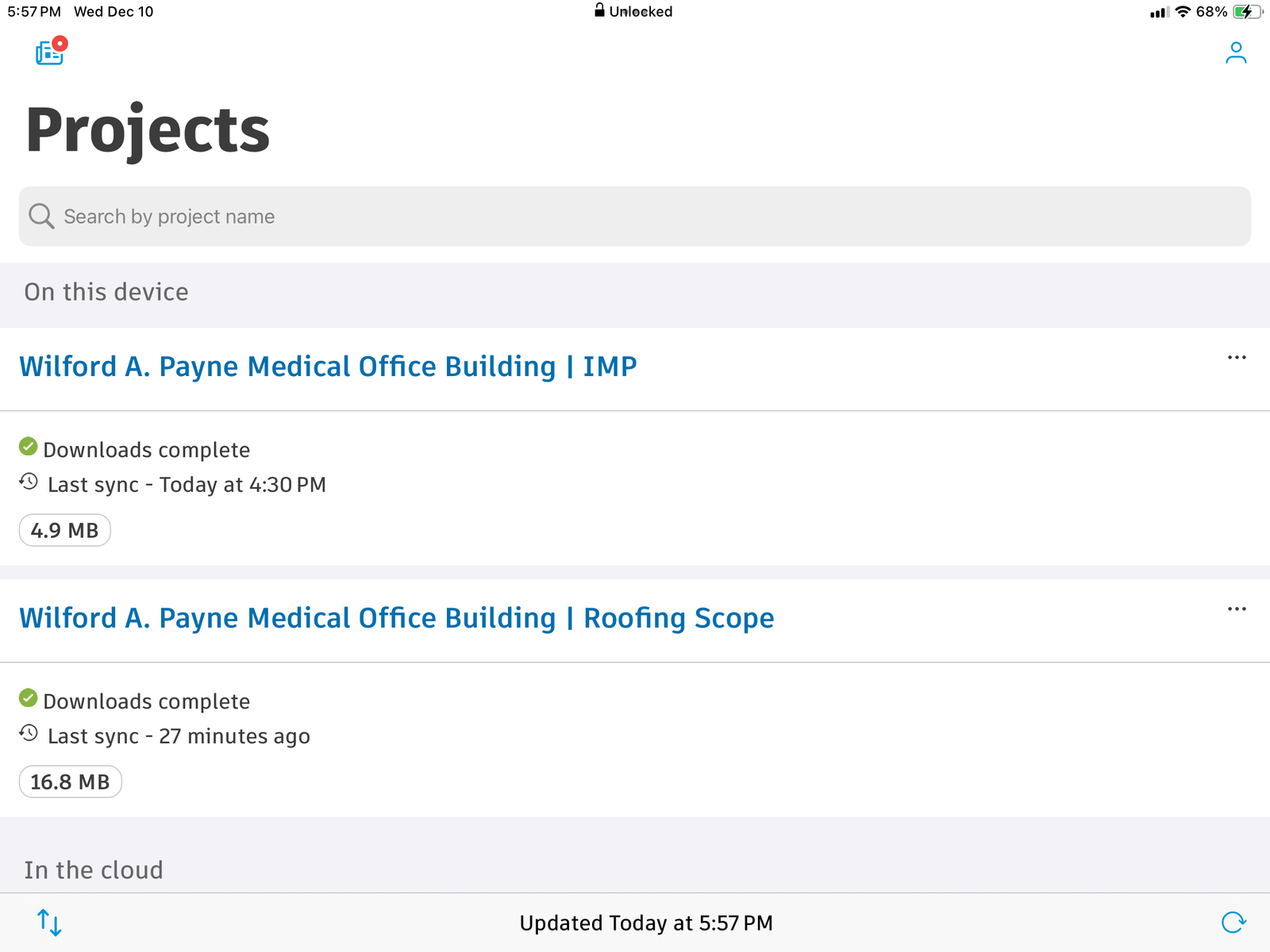
2. Projects List
- On this device - Downloaded for offline
- In the cloud - Requires internet
- Check sync status and file size
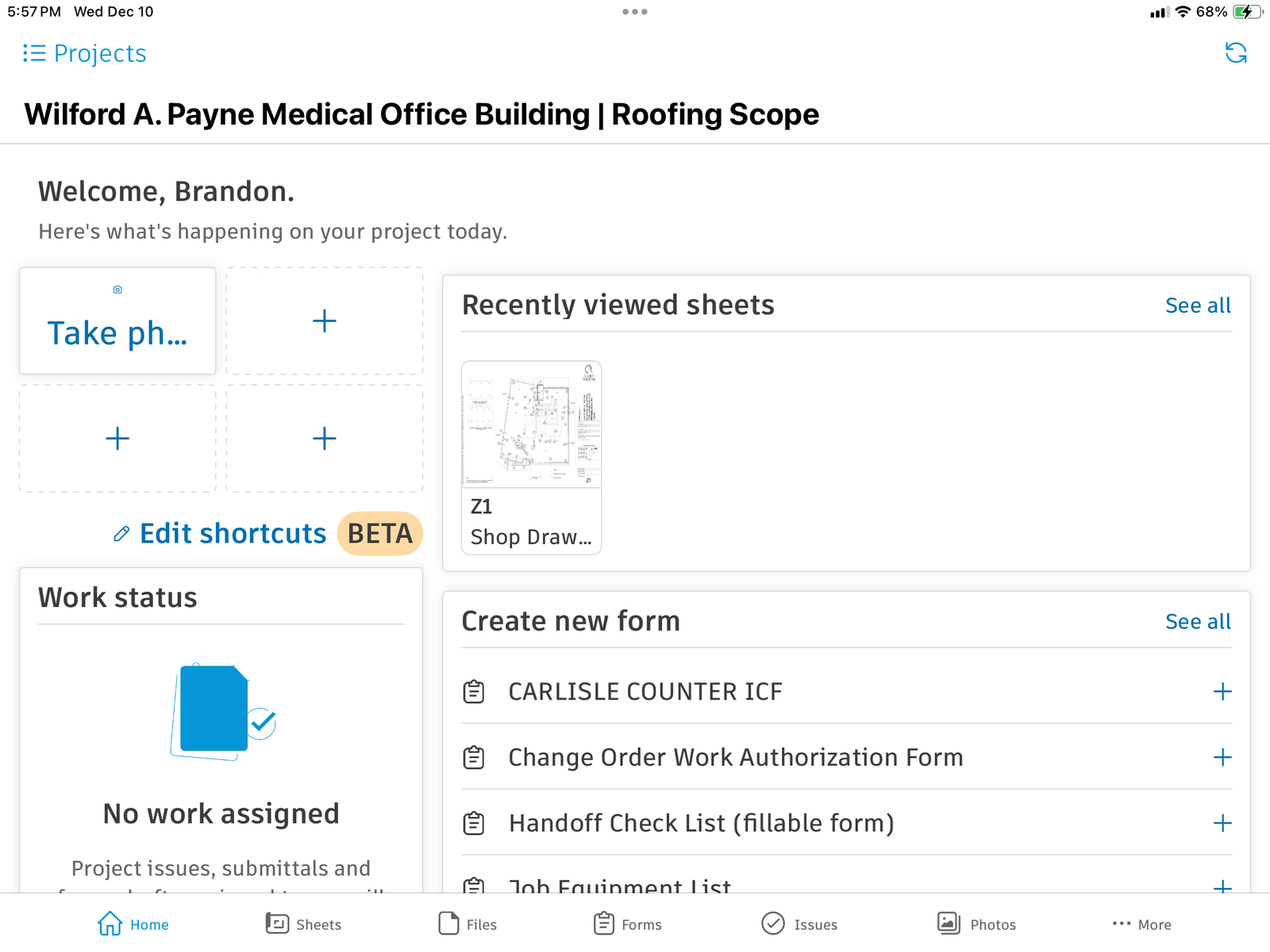
3. Navigation Bar

- Home - Dashboard & shortcuts
- Sheets - Construction drawings
- Files - Project documents
- Forms - Company forms
- Issues - Track problems & RFIs
- Photos - Project photos
- More - Additional options
4. Project Home
- Personalized shortcuts (customizable)
- Recently viewed sheets
- Create new forms
- Work status overview
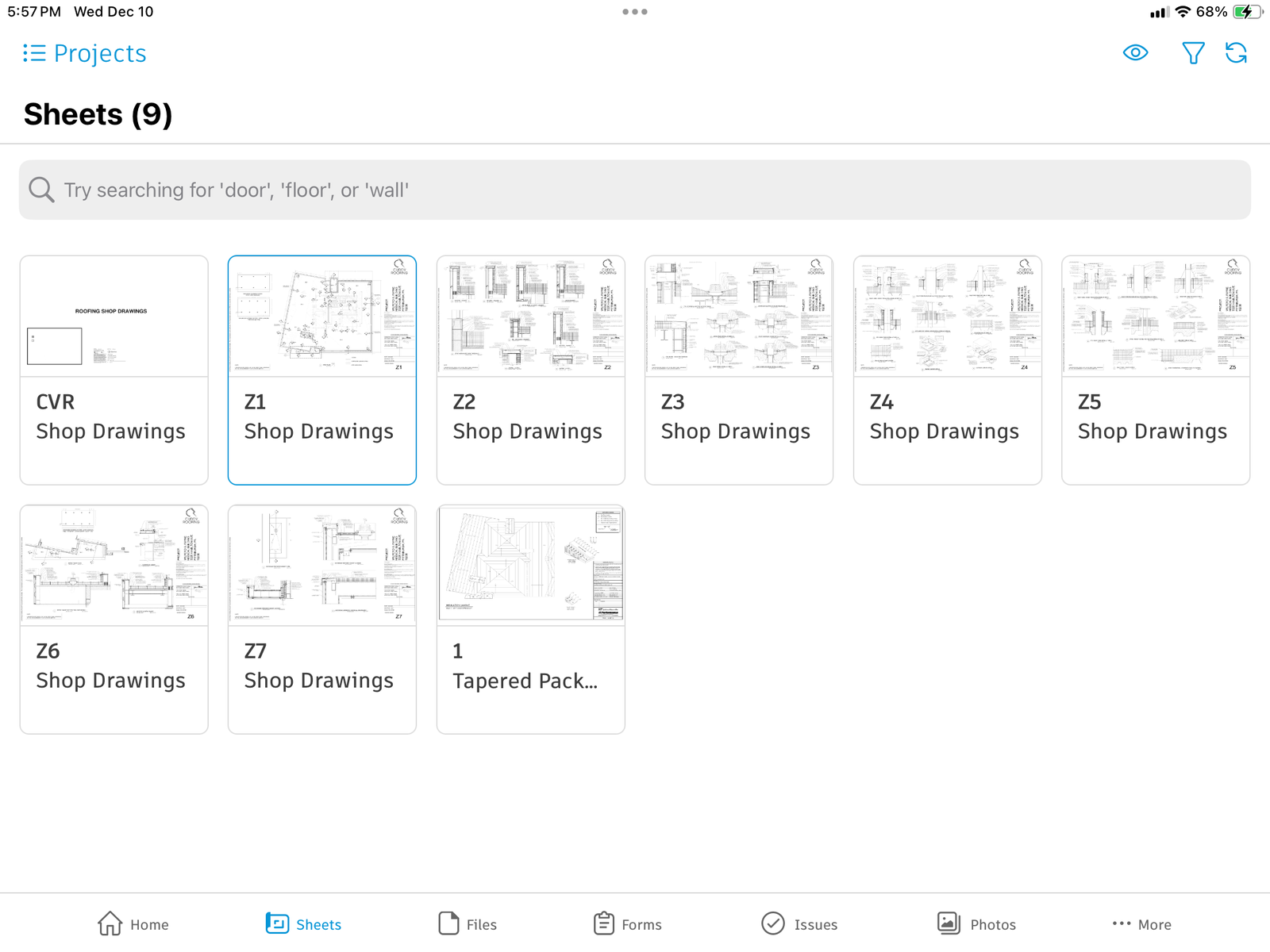
5. Sheets - Finding Drawings
- Search by sheet name or number
- Grid view shows thumbnails
- Filter and sort options
- Sync status indicators
6. Viewing Sheets - Full View
- Pinch to zoom in/out
- Pan around the drawing
- Search within the sheet
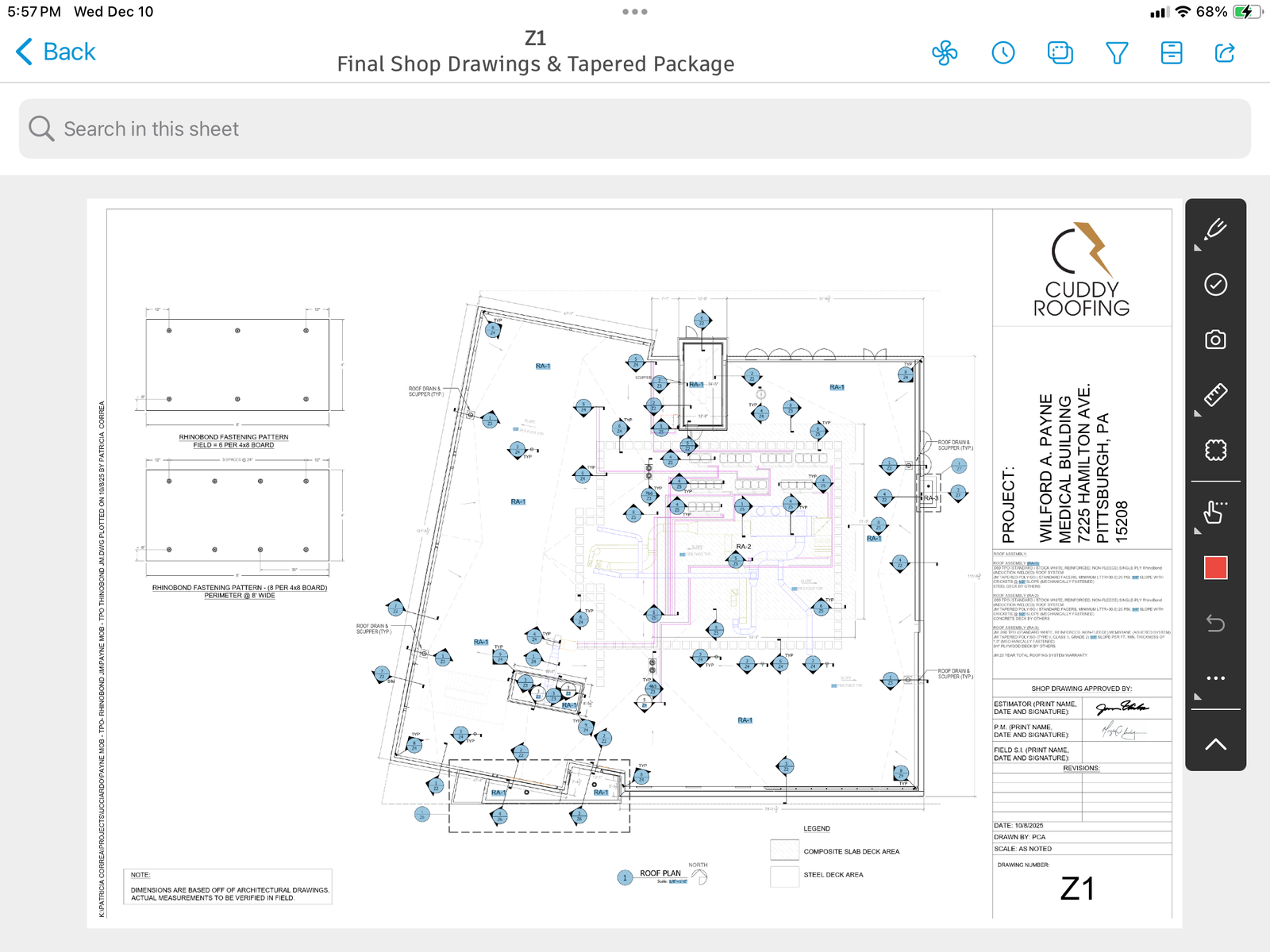
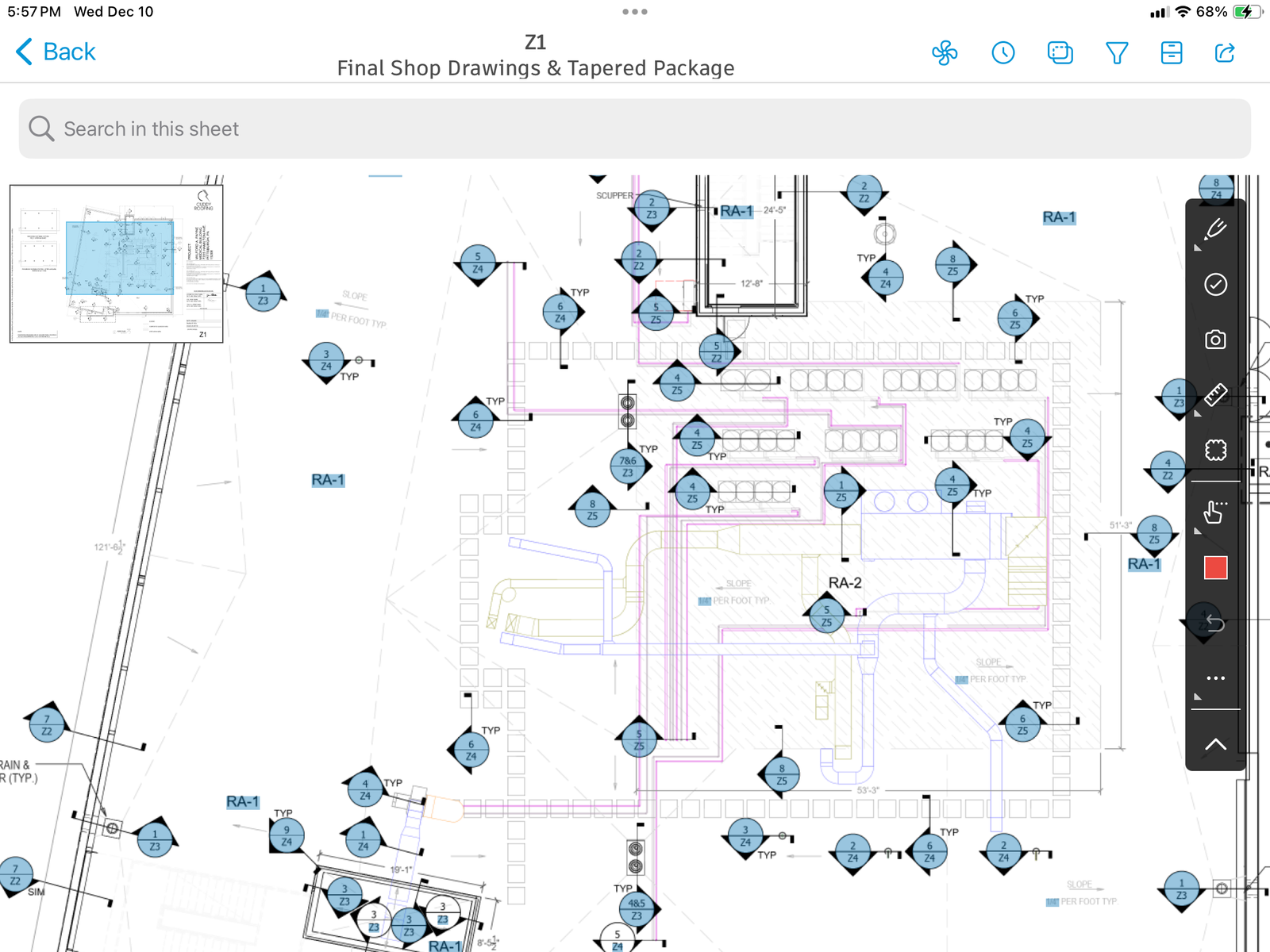
6. Viewing Sheets - Zoomed Detail
- Pinch to zoom in/out
- Pan around the drawing
- Search within the sheet
7. Markup Tools
- Draw/markup
- Checkmark
- Take photo
- Measure
- Callout/pin
- Hand tool (pan)
- Delete
- Undo
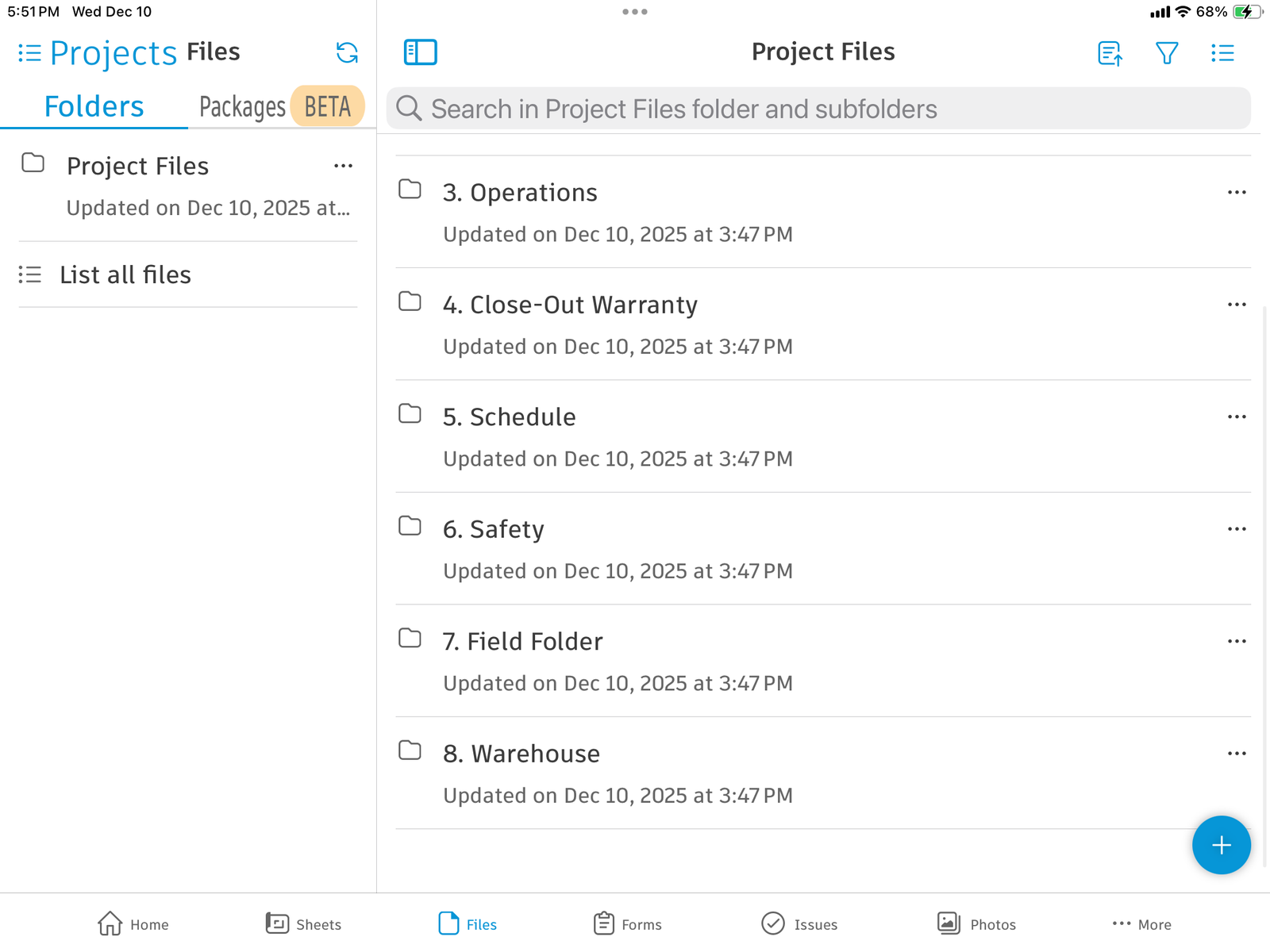
8. Files - Project Documents
- Operations
- Close-Out Warranty
- Schedule
- Safety
- Field Folder
- Warehouse
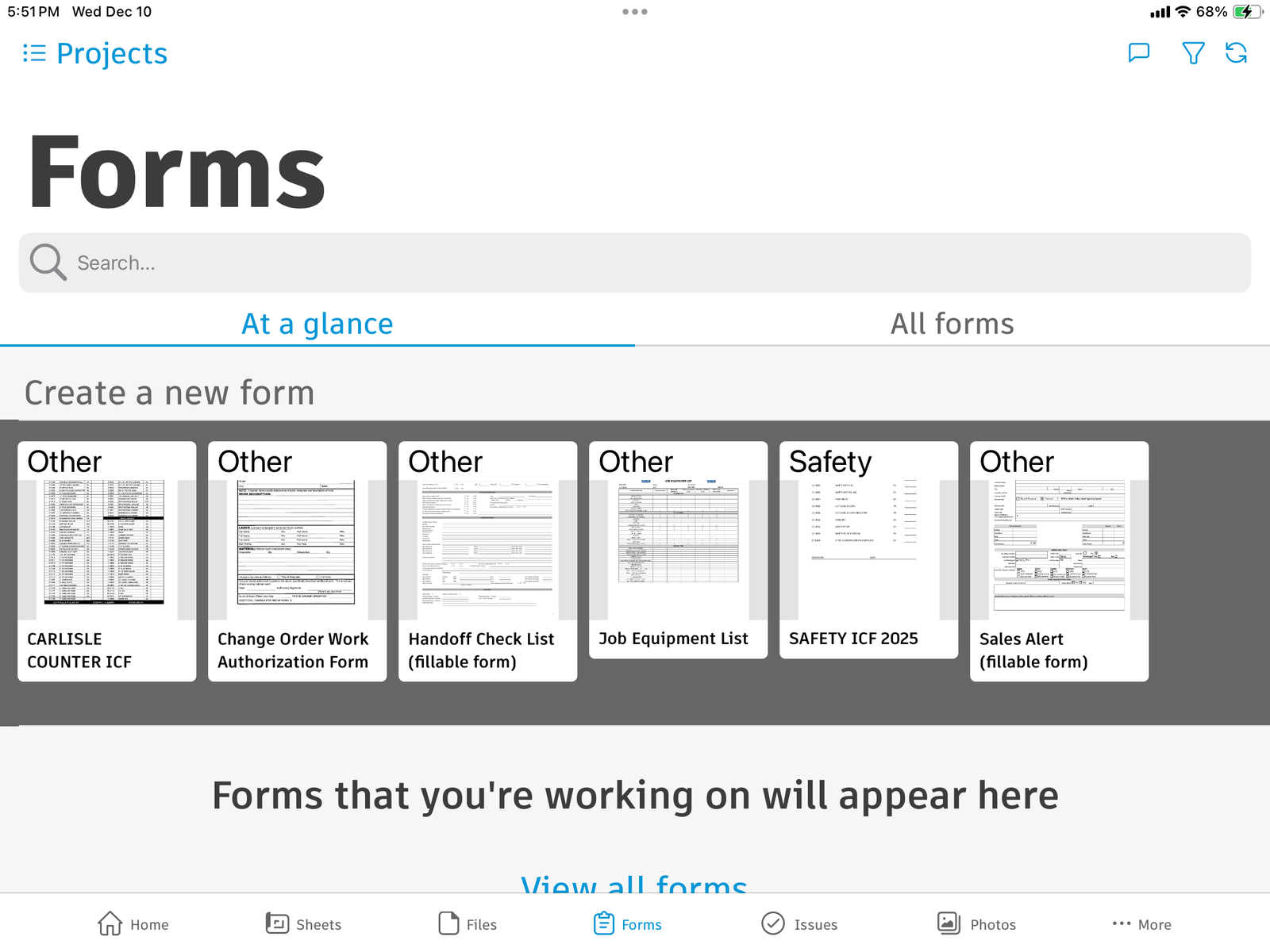
9. Forms - Company Forms
- CARLISLE COUNTER ICF
- Change Order Work Authorization Form
- Handoff Check List (fillable form)
- Job Equipment List
- SAFETY ICF 2025
- Sales Alert (fillable form)
10. Creating a Form
- Tap the form name from Home or Forms tab
- Fill out required fields
- Add photos if needed
- Submit when complete
- Forms sync automatically when online
11. Downloading Jobs for Offline Use
- Download projects before going to field
- Check "Downloads complete" status
- View file size to manage storage
- Work offline, sync when back online
- Last sync time shows data freshness
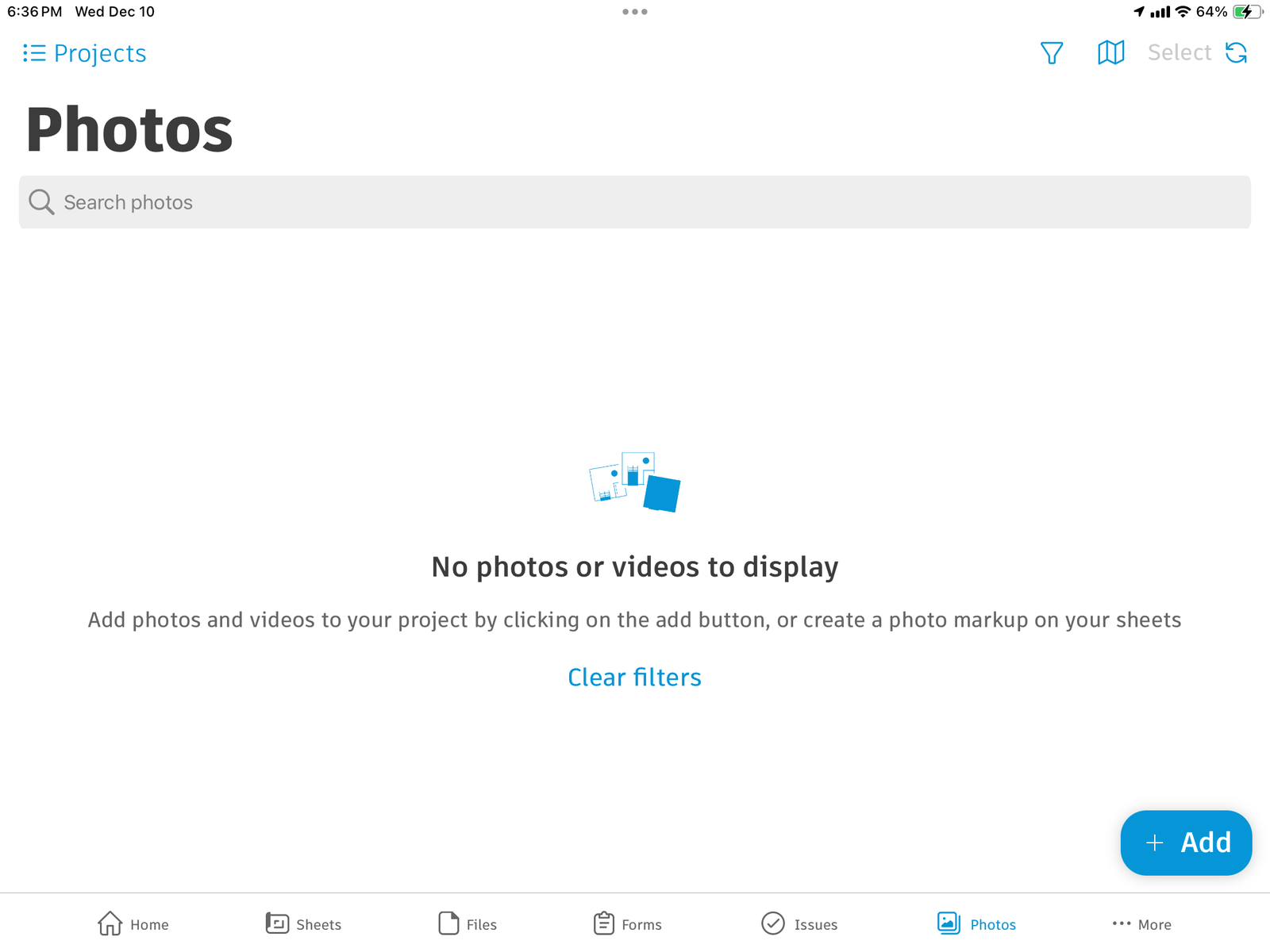
12. Photos - Taking Photos
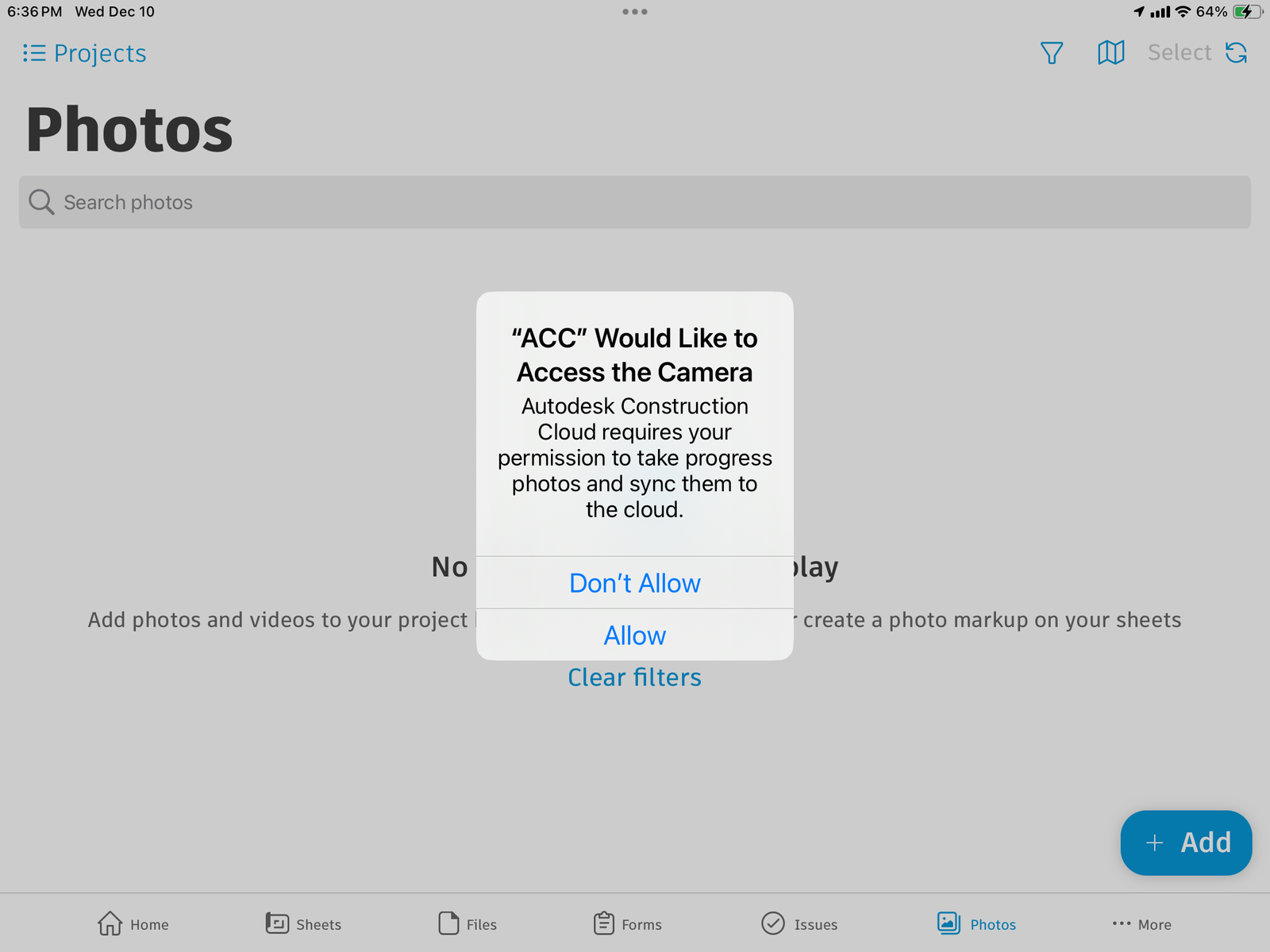
- Allow camera access when prompted
- Take photos from Home or Photos tab
- Photos sync to cloud automatically
- Add photos to issues and forms
12. Photos - Taking Photos
- Tap "+ Add" button to add photos
- Search photos by name or date
- Create photo markups on sheets
- Filter and organize project photos